
Schedule & pay
Where do staff see their schedule?
Section titled “Where do staff see their schedule?”The Schedule tab shows their week. Tap a day to see their shift and their clients that day. Use the arrows to move between weeks. Your usual week shows the regular week from the schedule templates they’re on.
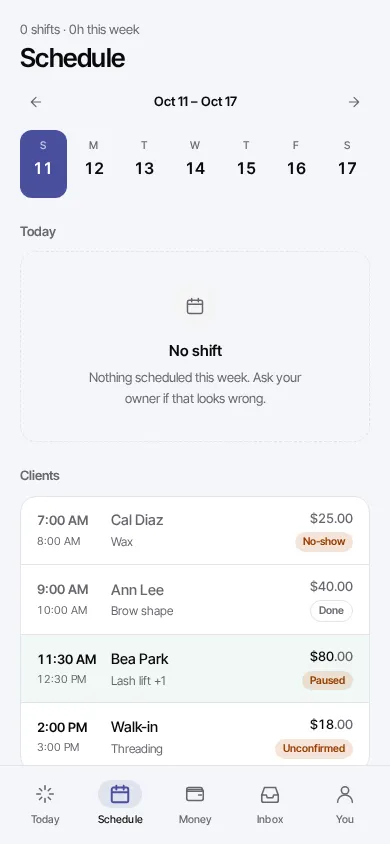
Shifts come from Employees > Schedule in the dashboard and show up as soon as you add them.
Where do staff see their pay?
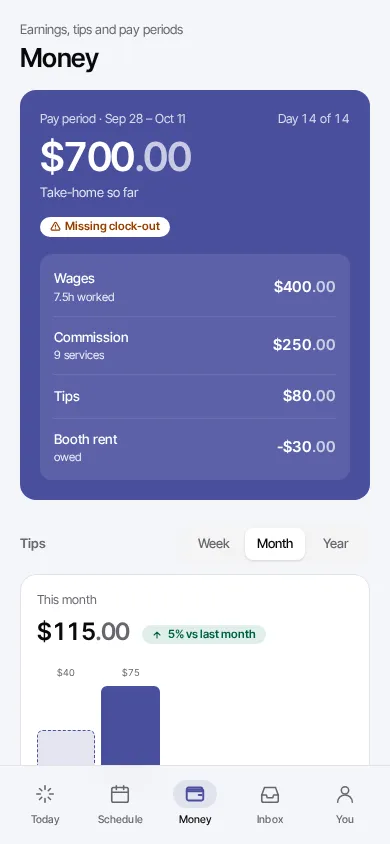
Section titled “Where do staff see their pay?”The Money tab shows the current pay period: Take-home so far, then Wages (with hours worked), Commission (with services done), Tips and Booth rent owed. Below are a tips chart (Week, Month, Year) with each tip one by one, and past pay periods.
Their Pay terms (Hourly, Daily, Booth rent, Commission only or Hybrid, with their rates and commission) show on the You tab. You set them on their page in Employees > Staff, under Pay (see Add your team). The length of a pay period is set in Settings > Pay period.
Troubleshooting
Section titled “Troubleshooting”“Nothing scheduled this week. Ask your owner if that looks wrong.”
Section titled ““Nothing scheduled this week. Ask your owner if that looks wrong.””There are no shifts for them that week at this location. The owner adds them in Employees > Schedule.
The Money tab says “Missing clock-out”
Section titled “The Money tab says “Missing clock-out””A day in that period has a clock-in with no clock-out, and counts 0 hours until it’s fixed. The owner fixes it in Work history.
Wages or commission look wrong
Section titled “Wages or commission look wrong”Check, with the owner: their pay terms and the date they start (on the You tab), the pay period in Settings > Pay period, and that every shift has a clock-out. Commission comes from completed visits with them.
Tips don’t match what I got
Section titled “Tips don’t match what I got”Tips show once the payment is taken. A refunded tip shows as its own negative line. Tips shared between several staff on one visit are split.