
Your daily overview
यह पेज अभी हिंदी में उपलब्ध नहीं है, इसलिए अंग्रेज़ी में दिखाया गया है।
Overview is the first screen you see after signing in. Its title is Daily Business Overview, and it answers “how is today going?” (or, for a past day, “how did it go?”).
Open Overview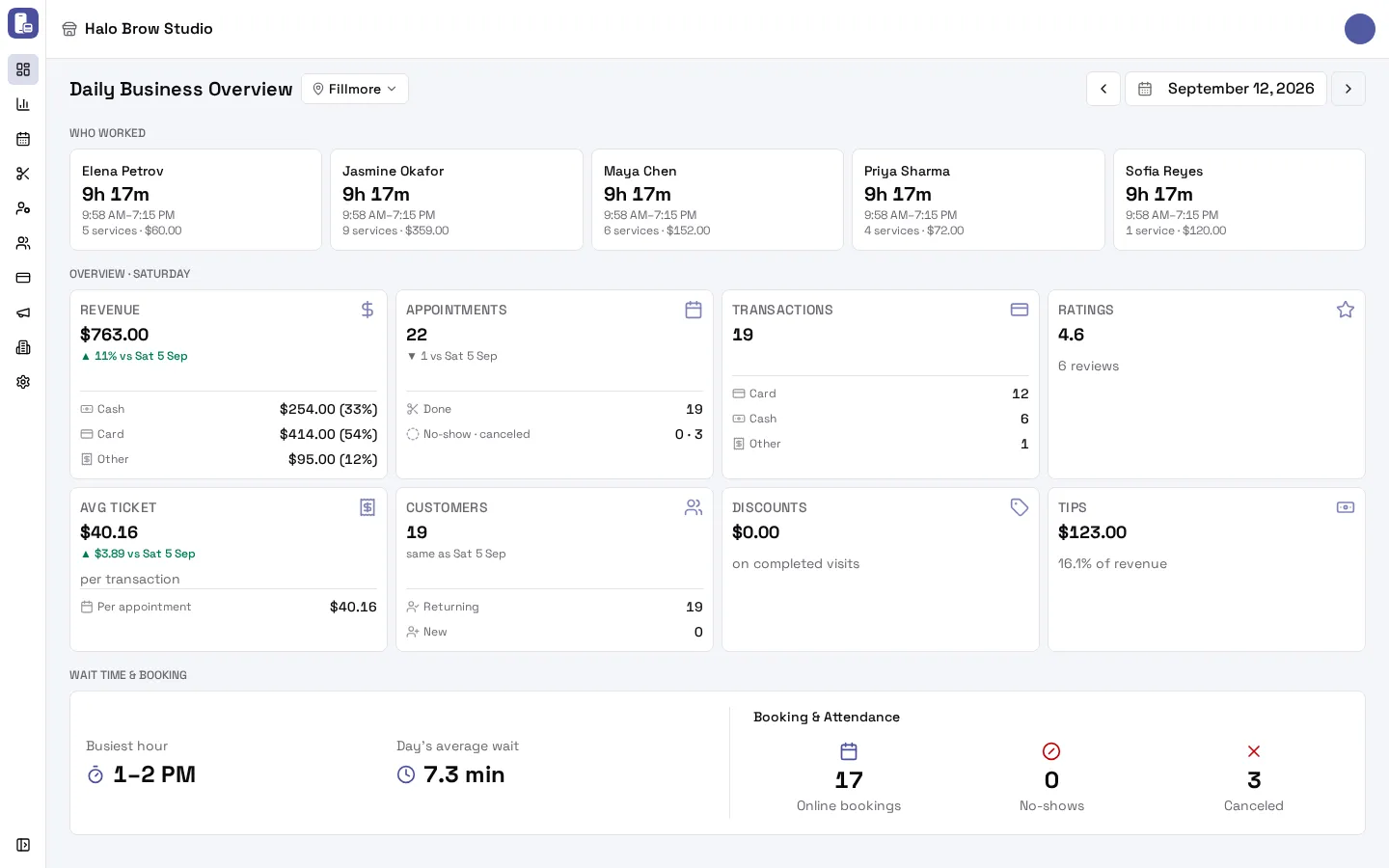
How do I look at another day or another location?
Section titled “How do I look at another day or another location?”- Day: use the arrows beside the date, or tap the date to pick one. You can’t go past today.
- Location: use the location picker next to the title. Pick All locations to see the whole business at once (you only see locations you have access to).
- Business: if you run more than one business, switch businesses from the business name at the top of the page.
The day you pick stays in the page address, so a bookmark or a shared link opens the same day.
What’s on the Overview?
Section titled “What’s on the Overview?”From top to bottom:
- The alert row (only when something needs a look).
- Current Status (today) or Who worked (a past day).
- Today’s overview: eight tiles.
- Wait time & booking, then Activity (customer traffic per hour and the services performed).
- Monthly goals (today only, once goals are set).
What does the “Needs a look” alert row mean?
Section titled “What does the “Needs a look” alert row mean?”An amber line appears under the title when something needs you. Each item is a link: one visit opens that appointment, several open the day’s appointment list.
- No-shows today, for example “1 no-show (Dana R., 11:30 AM)”.
- Finished visits not paid in full, with the amount still owed.
- Visits left open from an earlier day, for example “Anjali P. still checked in since Mon”. Open the visit and finish or cancel it.
- Ratings under 3 stars today.
On a past day it only shows finished visits from that day that are still not paid. When nothing needs a look, the row is hidden.
What is Current Status?
Section titled “What is Current Status?”Three cards about right now:
- Active Staff: who is clocked in, out of the people on today’s schedule. Tap it to see each person’s hours, services and what they earned today.
- Waiting: clients checked in but not started, with the longest wait. Tap it for the list and the Predicted Wait.
- In Progress: clients being served now.
On a past day these become Who worked: a card per person with their hours, clock-in and clock-out times, and services. An amber Missing clock-out badge means a clock-in on that day was never closed. Tap it to fix it in Work history.
What do the tiles mean?
Section titled “What do the tiles mean?”| Tile | What it counts |
|---|---|
| Revenue | Sales after refunds, without tips, split into Cash, Card and Other |
| Appointments | Every visit on the day, whatever its status. Today: Done and Still to come. A past day: Done and No-show · canceled |
| Transactions | Payments taken, by Card, Cash and Other |
| Ratings | Average stars and the number of reviews, plus how many were under 3 stars |
| Avg Ticket | Revenue per payment, and Per appointment (revenue per completed visit) |
| Customers | Different clients served, split into Returning and New (first completed visit at your business) |
| Discounts | Coupons and manual discounts on completed visits |
| Tips | Tips after refunded tips, and their share of revenue |
Most tiles compare with the same weekday last week. Up is green. Down or level is grey, never red: a slower day isn’t an alarm. Today, Revenue shows your pace, for example “▲ $74 ahead of last Tue at 2 PM”.
Tap Appointments or Transactions to see the day’s list without leaving the page.
What is “Online bookings”?
Section titled “What is “Online bookings”?”Under Wait time & booking, Online bookings counts visits on the day that clients booked themselves on your booking site. Bookings your team makes and walk-ins don’t count. No-shows and Canceled are next to it.
What are the goals at the bottom?
Section titled “What are the goals at the bottom?”If your business has monthly goals, a strip at the bottom shows how this month is going: Monthly sales against your target (with the pace for the month), and Rebook rate, New-client return rate and Utilization over the last 30 days. Each bar opens the matching report.
No goals yet? Owners see one quiet line, Set monthly goals: suggested from your history, with Review. It opens the goals with suggestions filled in from your own numbers. See Monthly goals.
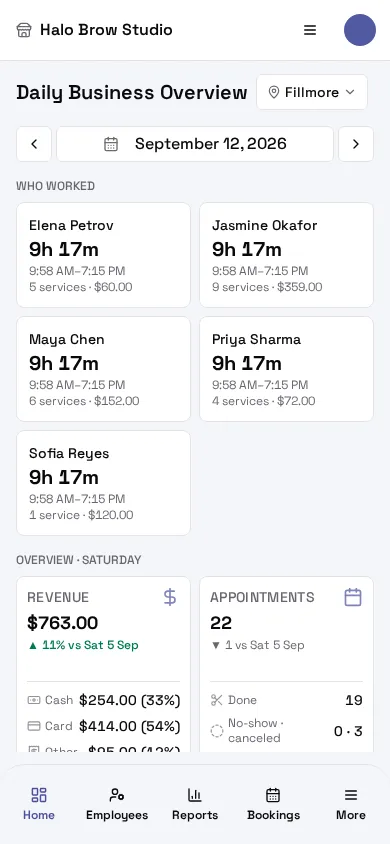
On your phone
Section titled “On your phone”The bar at the bottom of the screen takes you to Home, Employees, Reports, Bookings and More. More has everything else (customers, payments, marketing, settings).
Troubleshooting
Section titled “Troubleshooting”Why does the Overview show zero for today?
Section titled “Why does the Overview show zero for today?”Numbers come from completed payments and visits. Early in the day, or before anyone has paid, most tiles are 0. Check that the right location is picked (or pick All locations).
Why is Revenue different from what I took in?
Section titled “Why is Revenue different from what I took in?”Revenue is sales after refunds and without tips, counted on the day of the payment. Tips are in their own tile. A refund lowers revenue on the day it was made, not on the day of the sale. More in Sales.
Why does Active Staff say 0 when my team is working?
Section titled “Why does Active Staff say 0 when my team is working?”Active Staff counts people who are clocked in. If staff forget to clock in on the tablet or the staff app, they don’t show. See Work history.
I don’t see the goals strip
Section titled “I don’t see the goals strip”It shows only today, only once goals are set, and only to members who can see reports for the whole business.