
Your texting number
यह पेज अभी हिंदी में उपलब्ध नहीं है, इसलिए अंग्रेज़ी में दिखाया गया है।
Every text FocalPOS sends for you (confirmations, reminders, marketing) goes out from your salon’s own toll-free texting number. You set it up in Settings > Texting number.
Open Texting number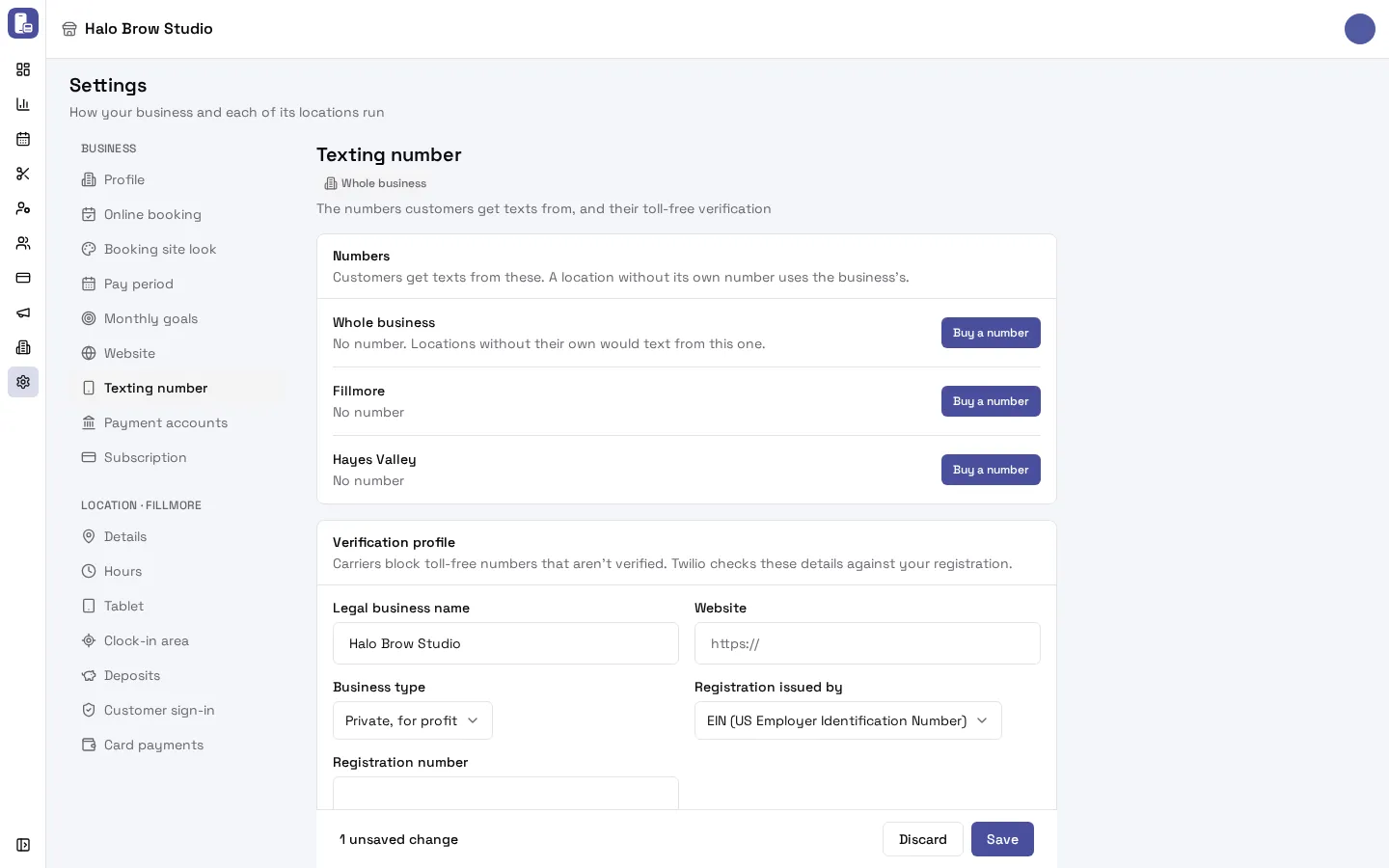
Do I need one number or one per location?
Section titled “Do I need one number or one per location?”Either works. You can have one number for the Whole business and one for each location.
- A location with its own number texts its clients from that number.
- A location without its own number texts from the business’s number.
One business-wide number is enough for most salons. Give a location its own number if its clients should see texts from a different number.
How do I get a texting number?
Section titled “How do I get a texting number?”- Go to Settings > Texting number.
- Next to Whole business (or a location), press Buy a number.
- Pick one of the numbers offered. Your texting number is included with Starter, Pro and Business (Free has no texting).
- Confirm the purchase.
If it says the place already has a number, release the old one first (see below).
How do I get my number verified?
Section titled “How do I get my number verified?”Phone carriers block toll-free numbers that aren’t verified. You fill in one verification profile for the business, and it’s used for every number you have.
Under Verification profile, fill in:
- Legal business name: exactly as on your tax (EIN) paperwork.
- Website: a working link. Your booking site, Instagram or Google Business page is fine.
- Business type and Registration issued by (for example EIN), and the Registration number. A sole proprietorship doesn’t need a registration number.
- Business address.
- Contact: the person the carrier can ask about the verification, with email and phone.
Press Save. Saving sends every number that isn’t verified (or under review) for verification. You need online booking turned on first, because carriers check your booking site.
What do the verification statuses mean?
Section titled “What do the verification statuses mean?”| Status | What it means | What to do |
|---|---|---|
| Not verified | The number hasn’t been sent for verification. | Fill in the verification profile and press Save. |
| Submitted | Sent, waiting for review. | Wait. |
| In review | The carrier is reviewing it. This can take several business days. | Wait. You can’t send changes during a review. |
| Verified | Approved. Texts are delivered. | Nothing. |
| Rejected | The carrier said no. The reason shows on the row. | Fix the profile (often the business name or website), then Save to send it again. |
The status refreshes about every 30 minutes.
How do I release a number?
Section titled “How do I release a number?”Press Release on the number’s row and confirm with Release number. The number goes back to the carrier and your clients stop getting texts from it. A location without a number then texts from the business number.
How do I see every text that was sent?
Section titled “How do I see every text that was sent?”Go to Marketing > SMS. The Texts page lists every text between your business and your clients, newest first: appointment texts, marketing texts, welcome texts and replies clients sent you.
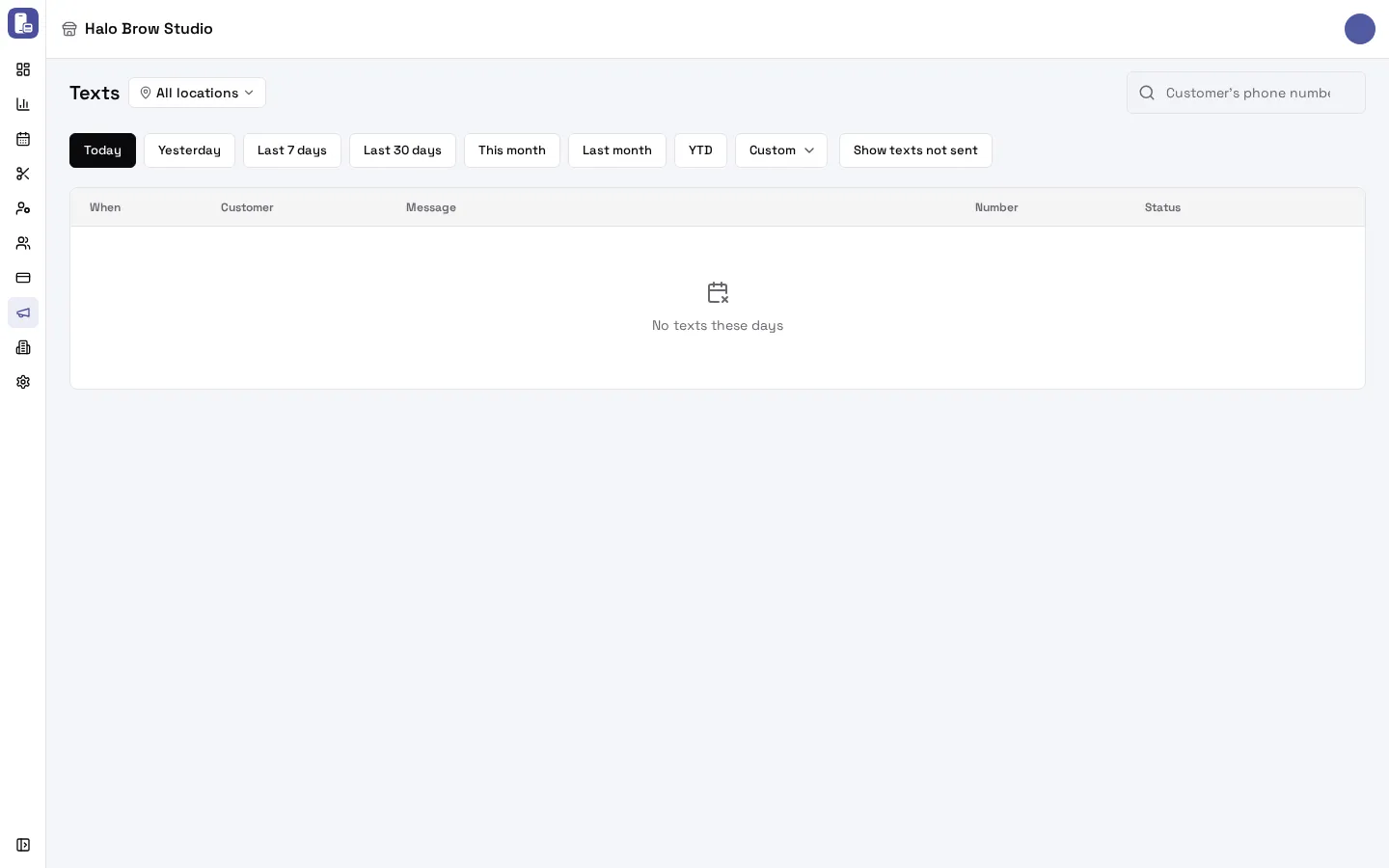
- Pick the days (Today, Last 7 days, Custom…), search by the Customer’s phone number, or pick a location’s number.
- Each row shows when, the client (masked number, with a link to the client), the text, whether it was Marketing or Appointment, which number it went through, and its status.
- Switch on Show texts not sent to also see texts that were never sent, with the reason.
What do the text statuses mean?
Section titled “What do the text statuses mean?”- Queued, Sent, Delivered: normal.
- Received: a text the client sent you.
- Failed or Not delivered (red): the carrier refused it. The carrier’s reason shows, for example “Unsubscribed recipient (21610)”, which means the client texted STOP to that number.
- Not sent (amber, only with Show texts not sent on): FocalPOS didn’t send it, with why: Not opted in to appointment texts (or marketing texts), or No number to send from.
See Why didn’t my client get a text? for what to do in each case.
Troubleshooting
Section titled “Troubleshooting”My texts aren’t being delivered.
Section titled “My texts aren’t being delivered.”- In Settings > Texting number, check the number shows Verified. Unverified numbers get blocked by carriers.
- Open Marketing > SMS, switch on Show texts not sent, and look at the status of the texts.
- Follow Why didn’t my client get a text?
My verification was rejected.
Section titled “My verification was rejected.”Read the reason on the number’s row. The most common causes are a legal business name that doesn’t exactly match your EIN paperwork, or a website link that doesn’t open. Fix the profile and press Save to send it again.
Verification has said “In review” for days.
Section titled “Verification has said “In review” for days.”Carrier review can take several business days. If it’s been more than two weeks, email support@focalpos.com.
The step builder says “The business has no texting number, so these texts won’t be sent.”
Section titled “The step builder says “The business has no texting number, so these texts won’t be sent.””Your business has no texting number yet. Buy one in Settings > Texting number. Until then, texts show as Not sent with No number to send from.
I can’t see Settings > Texting number.
Section titled “I can’t see Settings > Texting number.”Only members with access to Integrations can see numbers and verification. Ask the business owner.