
Your website
यो पेज अझै नेपालीमा उपलब्ध छैन, त्यसैले अंग्रेजीमा देखाइएको छ।
FocalPOS makes a website for your salon from what is already in FocalPOS: your menu and prices, team, hours, address and your next open times. There’s nothing to fill in, and it updates itself when those change. Every Book button goes to your online booking site. It lives under Settings > Website and applies to the whole business.
Open Website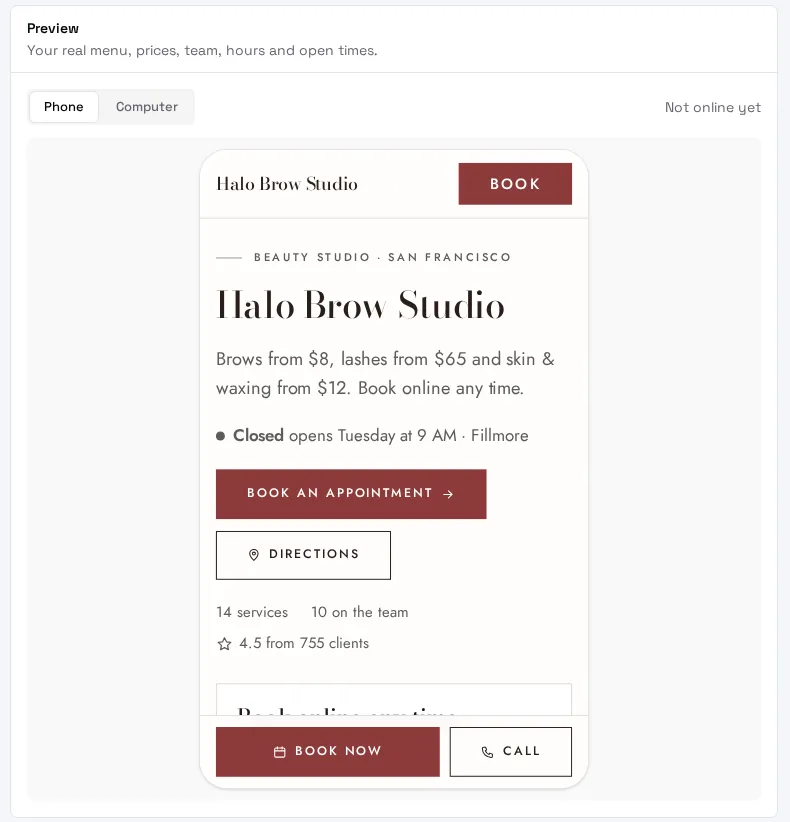
How do I put my website online?
Section titled “How do I put my website online?”- Turn on online booking first (see Online booking). Your website’s address comes from your booking address.
- Go to Settings > Website. The top card says Your website is ready to go online.
- Press Put my website online. It goes live at once.
Your website’s free address is your booking address on focalpos.page: if clients book at halo.focl.app, your website is halo.focalpos.page. The card shows the address with a status: Not online yet, Online or Offline.
To take it down, press Take offline. Visitors are told your website isn’t available; your choices are kept. Put back online brings it back.
How do I change how my website looks?
Section titled “How do I change how my website looks?”Everything below the top card is optional. Watch the Preview (switch between Phone and Computer) as you change things.
- Look: how everything is drawn (type, shapes and buttons), for example Classic, Soft, Editorial, Studio, Bold or Luxe. Each tile shows your own website in that look. Tap one to try it.
- Layout: what comes first and how it’s arranged, for example Quick book, Full page or Photos first. Any layout works with any look.
- Colours: your website uses your booking site colours. Light or dark picks light, dark, or matching the visitor’s device.
Press Save at the bottom to publish your changes.
What can I show on my website?
Section titled “What can I show on my website?”Under What’s on your page:
- Kind of business, shown beside your address and told to search engines (or Guess from my menu).
- The line under your name. Leave it empty and it’s written from your menu.
- Switches for Next open times (live from your calendar: tap a time to book it), Team (everyone bookable online), Client rating, Photos (shows once you add three or more), About you and Good to know.
Further down:
- Photos: upload your pictures; the first one is your cover.
- About you: a few lines about your salon.
- Good to know: tap what’s true (for example walk-ins welcome, parking nearby). Languages you speak shows as “We speak Spanish and Nepali”.
- Announcement: a line across the top of your website, like “Closed Monday for Labor Day”, with an optional Hide it after date.
- Your social pages: Instagram, Facebook and TikTok links, shown as buttons at the bottom.
How do I link my website to Google?
Section titled “How do I link my website to Google?”Linking your website and your Google Business Profile, and keeping your details the same on both, is the biggest help to showing up on Google Maps. Under Google Business Profile:
- Paste Your Google profile link. On Google Maps, open your business, tap Share, then Copy link.
- Add your website to your Google profile: press Copy next to your website’s address and paste it into your Google profile’s website field.
- Keep these the same on Google: your name, and each location’s address, phone and hours, exactly as your website shows them. Each has an Edit link to the FocalPOS page where it’s set.
- Press Save.
How do I use my own domain (like halosalon.com)?
Section titled “How do I use my own domain (like halosalon.com)?”You need a domain you already own. Buying one through FocalPOS isn’t available yet: buy one at a company like GoDaddy or Namecheap.
- At the bottom, under Web address, press Use your own address.
- To “Do you already own a web address?” answer Yes, I have one. (No: buy one first, then come back.)
- Type your address, just the address without
https://, for examplehalosalon.com, and press Next. A plain domain becomeswww.halosalon.com. - FocalPOS shows one CNAME record: its name (usually
www) and its value. Press Copy on each. - Sign in where you bought the domain, open its DNS settings and add that CNAME record. Also turn on forwarding from
halosalon.comtowww.halosalon.comthere, so both addresses work. - Wait. The card says Waiting for www.halosalon.com and “We check every few minutes; this page updates when it works.” How long it takes depends on your domain company.
When it works, the status turns Live and shows your address. Your free focalpos.page address keeps working too.
What do the web address statuses mean?
Section titled “What do the web address statuses mean?”| Status | What it means | What to do |
|---|---|---|
| Waiting for (your address) | FocalPOS can’t see your CNAME record yet | Check the record at your domain company, then press Check now |
| Live | Your own address shows your website | Nothing |
| Stopped working | It was live, but the record is gone or changed | Put the same record back where you bought the domain |
| Couldn’t connect | It waited too long (about a week) and gave up | Check the record, then press Try again |
Remove takes your own address off (it asks first). Get help emails FocalPOS support about your address.
Troubleshooting
Section titled “Troubleshooting”The Put my website online button is greyed out. Turn on online booking first: “Your website’s address comes from your booking address.”
My domain still says “Waiting”. Check that the CNAME record’s name and value match exactly what the page shows (use Copy), and that there isn’t an old record with the same name. Then press Check now; the card says “Checking now. It takes a minute or two.”
My website works with www but not without it. Turn on forwarding from the plain domain to the www address at the company you bought it from. FocalPOS connects the www address.
“This address is already connected to another FocalPOS business.” Contact us if it’s yours: support@focalpos.com.
Visitors see “not available”. Your website is offline (press Put back online), or online booking was turned off.
The Book button opens a different address. That’s expected: booking happens on your booking site, yoursalon.focl.app.
My changes don’t show on the website. Press Save at the bottom of the page. The Preview shows changes before you save; visitors only see them after.
“Your Google profile link isn’t from Google Maps”. Paste the link from Google Maps’ Share button (it starts with https://maps.app.goo.gl/ or similar), not a link to another site.