
Turn on online booking
यो पेज अझै नेपालीमा उपलब्ध छैन, त्यसैले अंग्रेजीमा देखाइएको छ।
Online booking gives your salon its own booking page, like yoursalon.focl.app, that you can share on Instagram, Google and in texts. Clients book there 24/7. You also need it on to add bookings from your calendar with New booking.
यो भिडियोका चरणहरू पढ्नुहोस्
अनलाइन बुकिङ सुरु गर्नुहोस्
- Open Settings, then Online booking.
- Choose your booking address. Keep it short and easy to say. Then press Turn on.
- Your booking page is live. Share the link on Instagram, Google and in texts.
- Booking rules: let clients choose who they see, and how far ahead they can book.
- Reminder texts are in Marketing, Messages, Appointment texts. The 24-hour reminder is on from the start.
How do I turn on online booking?
Section titled “How do I turn on online booking?”-
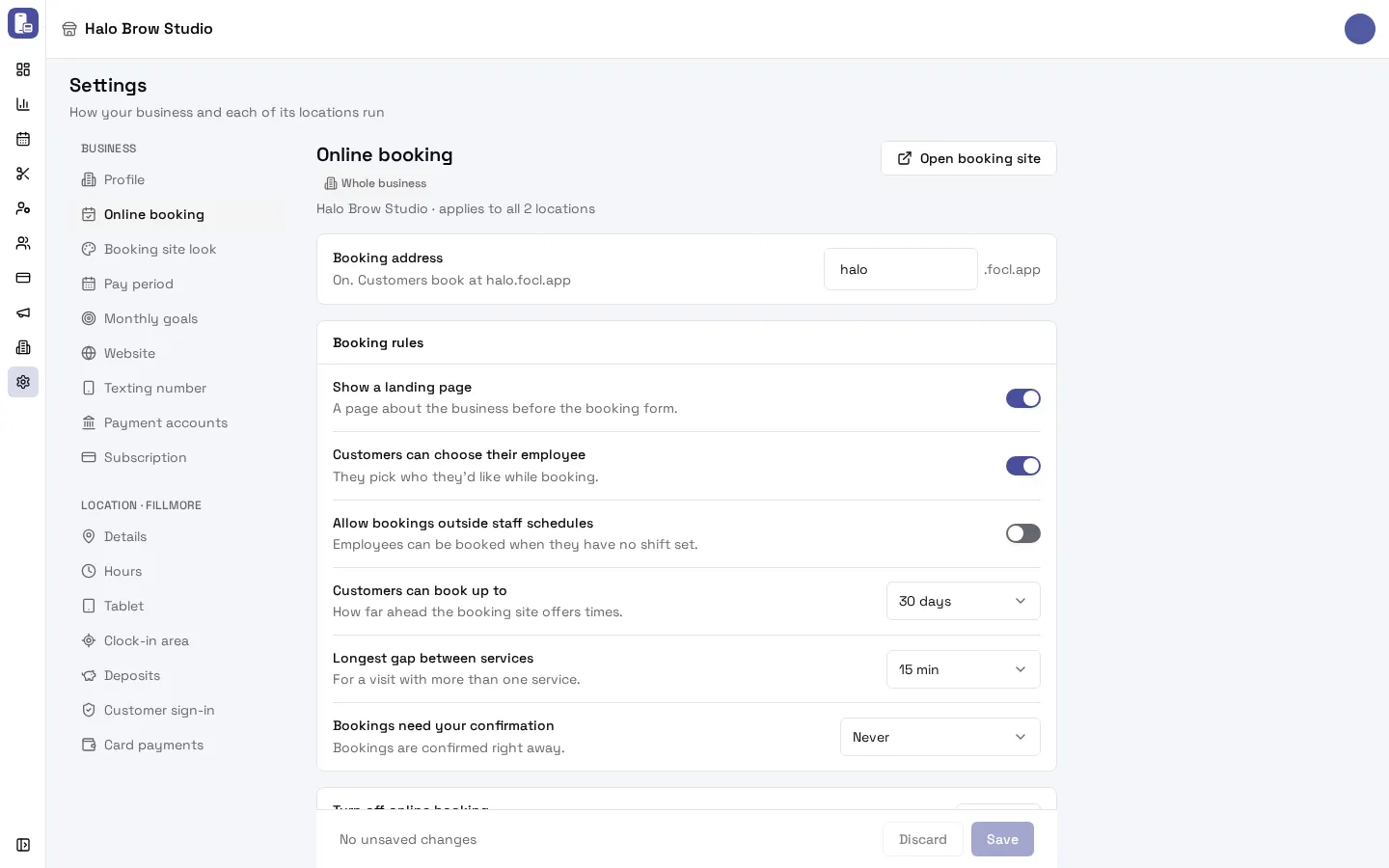
Go to Settings > Online booking.
-
Under Booking address, type the address you want: short and easy to say, like your salon’s name. It becomes address.focl.app.
Use at least 3 characters: lowercase letters, numbers and hyphens (for example luna-nails). It can’t start or end with a hyphen.
-
Press Turn on. You’ll see “Online booking is on at address.focl.app”, and the row says “On. Customers book at address.focl.app”.
Press Open booking site at the top of the page to see it as your clients do. See What your clients see for the whole booking flow.
How do I choose how booking works?
Section titled “How do I choose how booking works?”The Booking rules on the same page apply to every location. Change them, then press Save in the bar at the bottom (Discard undoes your changes).
| Setting | What it does |
|---|---|
| Show a landing page | Clients see a page about your salon (at <your booking name>.focalpos.page, for example halo.focalpos.page) with a button to book. |
| Customers can choose their employee | Clients pick who they’d like. Off: they book “anyone available”. |
| Allow bookings outside staff schedules | Staff can be booked when they have no shift set. Leave it off so clients only book people who are working. |
| Customers can book up to | How far ahead the booking site offers times: 7, 14, 30, 60 or 90 days. |
| Longest gap between services | For a visit with more than one service, the longest wait allowed between them: no gap, 5, 10, 15 or 30 minutes. |
| Bookings need your confirmation | Never: bookings are confirmed right away. Always: every booking waits for you to confirm it (free bookings skip this). At or above an amount: only bookings with a total at or above the amount you type wait for you. |
Bookings waiting for you show on the calendar until you confirm them.
How do I turn on booking confirmations and reminders?
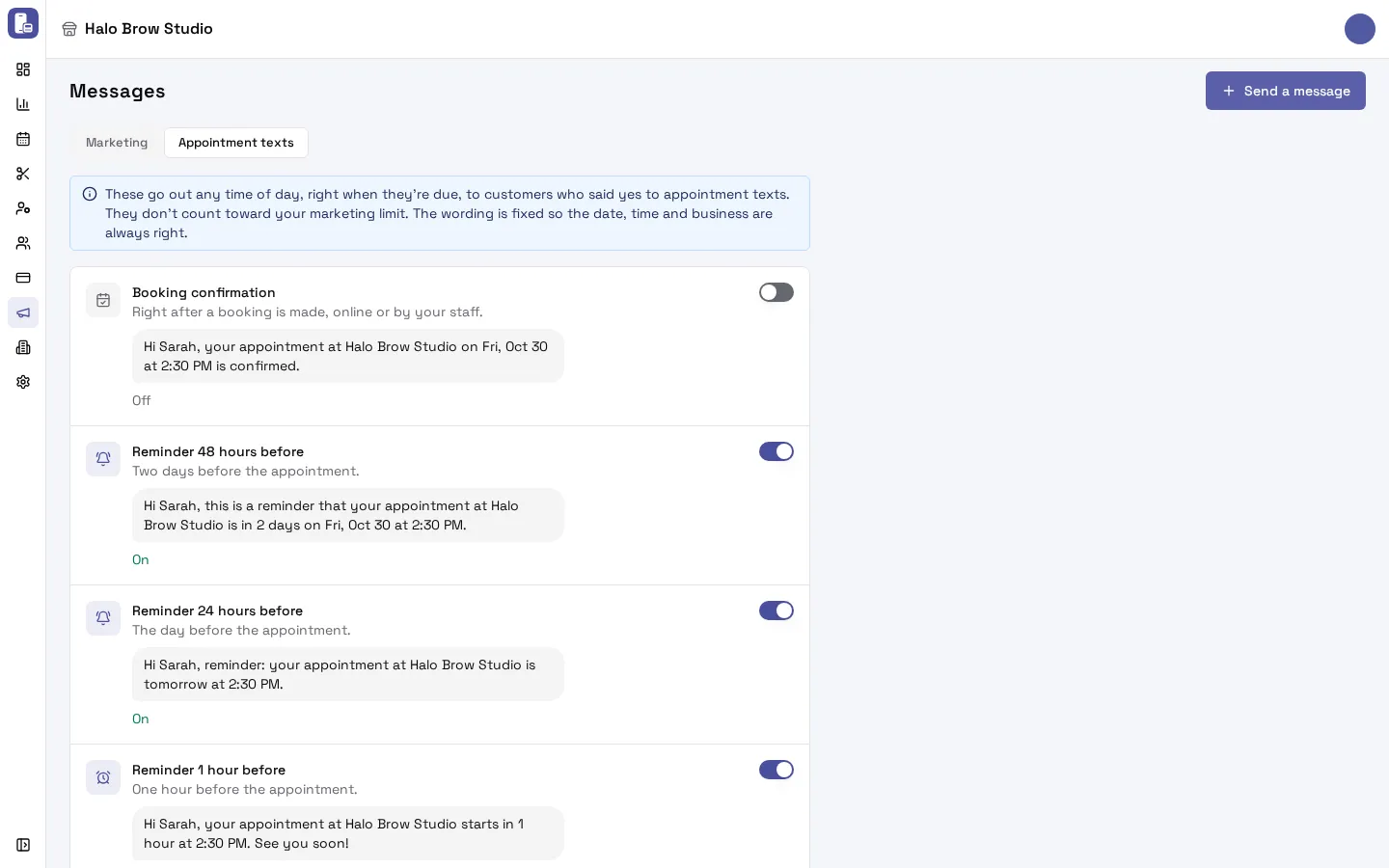
Section titled “How do I turn on booking confirmations and reminders?”Appointment texts are off until you turn them on. They live in Marketing > Messages > Appointment texts.
Open Appointment texts- Go to Marketing > Messages and open the Appointment texts tab.
- Switch on each text you want. FocalPOS shows the exact words clients will get and asks first: press Turn on.
- That’s it. Each change saves straight away. Switch a text off the same way.
| Text | When it goes out |
|---|---|
| Booking confirmation | Right after a booking is made, online or by your staff. |
| Reminder 48 hours before | Two days before the appointment. |
| Reminder 24 hours before | The day before the appointment. |
| Reminder 1 hour before | One hour before the appointment. |
| Thank-you after the visit | After the visit. Choose how long after with Send it … the visit ends (1 to 48 hours; 2 hours to start). |
The wording is fixed so the date, time and salon name are always right. Appointment texts go out any time of day, as soon as they’re due, and don’t count toward your marketing limit. Reminders cut no-shows, so we recommend at least the 24-hour one.
Want to add an offer to the thank-you? That’s the Thank you + offer automatic message in Marketing > Messages. More about every appointment text in Appointment texts.
Do clients pay a deposit when they book?
Section titled “Do clients pay a deposit when they book?”Only if you turn deposits on. Deposits are set per location in Settings > (your location) > Deposits: No deposit, a Fixed amount, a Percentage of the booking, or the Full price, plus rules for new clients only, a minimum total, a free-cancel window and no-shows. Deposits need an active Fiserv (CardPointe) card account on that location, which our support team connects (see Get paid). Full guide: Deposits.
Do clients have to sign in to book?
Section titled “Do clients have to sign in to book?”Only if you choose so. Settings > (your location) > Customer sign-in has three choices:
- Off (the default): clients book with their phone number. Nobody signs in.
- Optional: clients can sign in with a code we text them to see their appointments and saved cards. Booking doesn’t need it.
- Required: clients get a text code before they can book online. Walk-ins and bookings your staff make don’t need it.
Full guide: Customer sign-in.
How do I change how my booking page looks?
Section titled “How do I change how my booking page looks?”Your logo, colours and light or dark look are in Settings > Booking site look. See Booking site look. Want a full website too, not just a booking page? See Your website.
How do I turn online booking off?
Section titled “How do I turn online booking off?”At the bottom of Settings > Online booking, next to Turn off online booking, press Turn off, then confirm with Turn off again. Clients can no longer book online, and New booking on your calendar stops working. Your booking rules and appointment text choices are kept for when you turn it back on: type a booking address and press Turn on again.
Troubleshooting
Section titled “Troubleshooting”“That address is taken. Try another one.”
Section titled ““That address is taken. Try another one.””Another business already uses that booking address. Add your area or a word, for example luna-nails-austin.
“The booking address needs at least 3 characters”
Section titled ““The booking address needs at least 3 characters””Make it at least 3 characters long, using only lowercase letters, numbers and hyphens.
My booking page shows no times
Section titled “My booking page shows no times”Check, in order:
- the location has opening hours on that day,
- someone has a shift then,
- that person does the service (Services they do) and has Bookable online on,
- the service has Visible to customers on (Services),
- the day is within Customers can book up to.
A client didn’t get a confirmation or reminder text
Section titled “A client didn’t get a confirmation or reminder text”- Is that text switched on in Marketing > Messages > Appointment texts?
- Did the client tick the box to get appointment texts? Without it, they don’t get texts.
- Did the client ever reply STOP (or CANCEL, END, QUIT, UNSUBSCRIBE)? That stops every text from your salon until they text START to your number. Only the client can undo it. See Text consent.
- Is their phone number right on their customer page?
More causes in Texts not arriving.
The Appointment texts tab says “These apply while online booking is on”
Section titled “The Appointment texts tab says “These apply while online booking is on””Online booking is off, so until you turn it on, clients only get the standard 24-hour reminder. Turn online booking on and your choices on this tab apply.
A booking says it needs confirmation
Section titled “A booking says it needs confirmation”Bookings need your confirmation is set to Always or At or above an amount. Confirm the booking on the calendar, or change the setting to Never and press Save.
I changed a booking rule but nothing changed
Section titled “I changed a booking rule but nothing changed”Press Save in the bar at the bottom of Settings > Online booking. The bar says “No unsaved changes” once it’s saved.